

Your 4aGoodCause donation page can be shared as a stand-alone page, or you can now launch that same donation page in a pop-up modal from your website.
This gives donors a faster way to give without leaving the page they are already on, which can help reduce friction and keep more people focused on completing their donation.
You do not need to create a new donation campaign in 4aGC. The same donation form can be displayed in two ways, as a stand-alone page or as an embedded pop-up.
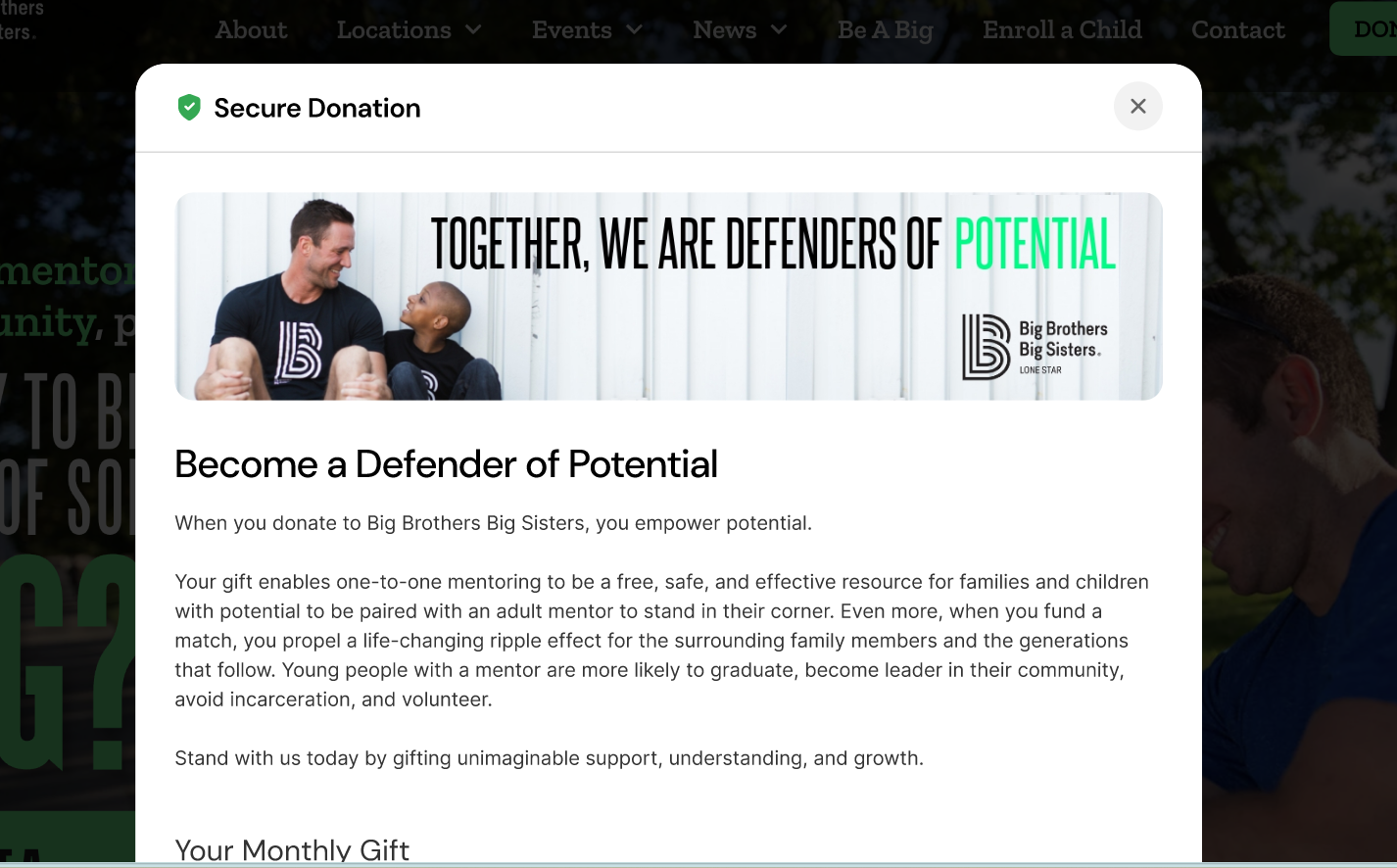
There are three easy ways to launch your embedded donation form from your website. You can use a donate button created in 4aGC, a standard hyperlink, or a custom image that you create yourself.
Choose the option that works best with your site design and how you want donors to interact with your page. You can find instructions for each option below.
Option 1 - Launch your donation form from a donate button created in 4aGC
You can create a button in 4aGC that launches the donation form in a pop-up modal. The button can match your site’s colors, use the label you want, and be built in different sizes.
Once the button is created, you’ll get a code snippet to add to your website where you want the button to appear. When a donor clicks the button, the donation form opens in a modal on your site.
How to Create a New Donate Button in 4aGC
Log in to https://4agc.com as a Nonprofit User.
Click on Campaigns on the left menu.
Click Donate Buttons on the left menu.
Click New Button on the right.
Select the donation page campaign that the button should launch.
Enter a label for the button. Donate or Donate Now is common.
Select a color from our color picker or enter a Hex color code to color the button.
Choose a size and round the corners of your button as desired.
Click Create Button.
You'll be presented with your Embed Code for the button. This is one line of code.
Click Copy to copy the code.
You'll then paste this into your website where you want the button to display.
How to Place Your Donate Button on Your Website
After you create your donate button in 4aGC, you will get a short code snippet. Copy that code and paste it into the page or section of your website where you want the button to appear.
The code will look like this, where [button-id] is replaced by the button ID of your button.
JavaScript<script src="https://4agc.com/embed/button/[button-id]"></script>On your website is might display like this:
You'll want to give these code snippets to the person or company that manages your website to place them where desired.
Option 2 - Launch your donation form from a hyperlink
This is a custom option that gives you more control over how the donation form call-to-action opens on your website. With this setup, you will add two code snippets, one for the hyperlink and one for the donation form launch. You will also connect the link to the campaign you want to open by using the campaign ID. This hyperlink option can only be used to launch active donation page campaigns.
How to Get Your Campaign ID
Log in to https://4agc.com as a Nonprofit User.
Click on Campaigns on the left menu.
You'll be presented with your list of campaigns.
On the right, click the Menu icon next to the campaign in question.
Select Copy Campaign ID from the menu.
This will copy the ID to your clipboard.
Paste this ID into your code snippets as noted below.
How to Set up Your Code Snippets
Paste your campaign ID into the scripts below, and replace [campaign-id] with the campaign ID you copied.
The first line of script loads the required library for the modal to work correctly. Place that first.
The second line is the HTML code that will display your hyperlink. You link any word, but Donate Now would be a common choice.
JavaScript<script src="https://4agc.com/embed/campaign/[campaign-id].js"></script>

<a href="#" data-fagc-button="[campaign-id]">Donate Now</a>
The hyperlink might appear on your website like this. Your website will govern the color and fonts of your hyperlink.
You'll want to give these code snippets to the person or company that manages your website to place them where desired.
Option 3 - Launch your donation form from a custom image you create
This option works just like the hyperlink method, but instead of using text, you will use a custom image that you create on your website. Most likely, your image will be a button that says Donate or Donate Now. You will still connect the button to the donation form using the campaign ID and the required code snippets. This gives you more control over the button’s design, while still opening the donation form in a pop-up modal.
How to Get Your Campaign ID
Log in to https://4agc.com as a Nonprofit User.
Click on Campaigns on the left menu.
You'll be presented with your list of campaigns.
On the right, click the Menu icon next to the campaign in question.
Select Copy Campaign ID from the menu.
This will copy the ID to your clipboard.
Paste this ID into your code snippets as noted below.
How to Set up Your Code Snippets
Paste your campaign ID into the scripts below, and replace [campaign-id] with the campaign ID you copied.
The first line of script loads the required library for the modal to work correctly. Place that first.
The second line is the HTML code that will display and link your image. You could use any image, but a Donate Now button would be a common choice. Replace "your-image.jpg" with your image file.
JavaScript<script src="https://4agc.com/embed/campaign/[campaign-id].js"></script>

<a href="#" data-fagc-button="[campaign-id]">
  <img src="your-image.jpg" alt="Description of the image">
</a>
Your custom image might appear on your website like this.

You'll want to give these code snippets to the person or company that manages your website to place them where desired.
How to Place Code Snippets into Your Website
Because every website host is different, the exact steps for placing the snippet(s) may vary. In most cases, you will need to open the page editor for your website, add a custom HTML, code, or embed block, and paste the snippet into that block. Then save and publish your page.
If you use a website builder like WordPress, Squarespace, Wix, Shopify, or Webflow, you may want to follow their specific instructions for adding embed or custom code blocks.
If you use one of the website platforms below, these help guides may be useful:
The person who built your website should know how to place code snippets such as these into your website, but if your webmaster needs help placing your code, have them contact support@4agoodcause.com.
Notes
This pop-up, embedded option only applies to donation forms. Please continue to link to your event and landing pages directly.
Need to copy your donate button embed code again? Just click Embed from the list of donate buttons you have created in 4aGC.Include
Modals can only display active campaigns. If you delete or make a campaign inactive, please remove the buttons or links from your website.
Using Apple Pay on your website with our embedded form requires that we validate your domain with Apple. Please contact support@4agoodcause.com for assistance in using Apple Pay in your pop-up embedded form.
The modal version of the donation form will match what is displayed on the standalone donation page, with a few minor omissions such as your Campaign Logo and Campaign Image. Inlcude a Banner Image on your campaign should you wish the modal to include a custom image.
Your donation page's "remember me" function will only work when the donation page is deployed as a standalone page.
Have questions?
Reach out to support@4agoodcause.com for assistance in launching your embedded donation form.