

By default, donation pages and event registration pages ask for a donor’s physical address and offer an email communications opt-in. You can hide either field if you want to keep your form shorter, reduce friction, and potentially increase conversions.
The steps below show how to turn these fields off on donation pages and event registration pages. You’ll also find notes on email opt-in best practices, plus guidance for Authorize.net users on how to avoid card declines when an address is not collected.
How to Hide the Address or Email Opt-in Field on your Donation Page
Login to https://4agc.com as a Nonprofit User.
Click on Campaigns on the left menu.
You will be presented with a list of your current campaigns.
Click the Menu icon on the right for the campaign you need to edit.
Select Edit from the menu.
Click the Donation Page tab.
Scroll down to the Donor Information section of this form.
Uncheck the "Ask the donor for a mailing or physical address" box if you want to hide the follwing fields: Address 1, Address 2, City, State/Province, Zip/Postal Code, and Country.
Uncheck the "Ask the donor to opt in to your email communications" box if you want to hide the email opt-in field.
Scroll down to the bottom of that page to click the button to Update that aspect of the campaign.
Click < Campaigns on the top left to return to the list of your campaigns.
How to Hide the Address or Email Opt-in Field on your Event Page
Login to https://4agc.com as a Nonprofit User.
Click on Campaigns on the left menu.
You will be presented with a list of your current campaigns.
Click the Menu icon on the right for the campaign you need to edit.
Select Edit from the menu.
Click the Event Page tab.
Scroll down to the Donor Information section of this form.
Uncheck the "Ask the donor for a mailing or physical address" box if yo want to hide the follwing fields: Address 1, Address 2, City, State/Province, Zip/Postal Code, and Country.
Uncheck the "Ask the donor to opt in to your email communications" box if you want to hide the email opt-in field.
Scroll down to the bottom of that page to click the button to Update that aspect of the campaign.
Click < Campaigns on the top left to return to the list of your campaigns.
Email Opt-In Best Practices
It’s a good idea to keep an email opt-in checkbox on your form so donors can choose whether they want to hear from you. If you remove it, make sure donors still have a clear way to opt out later, such as an unsubscribe link in your newsletter emails.
Authorize.net Users: Allow Donations Without an Address
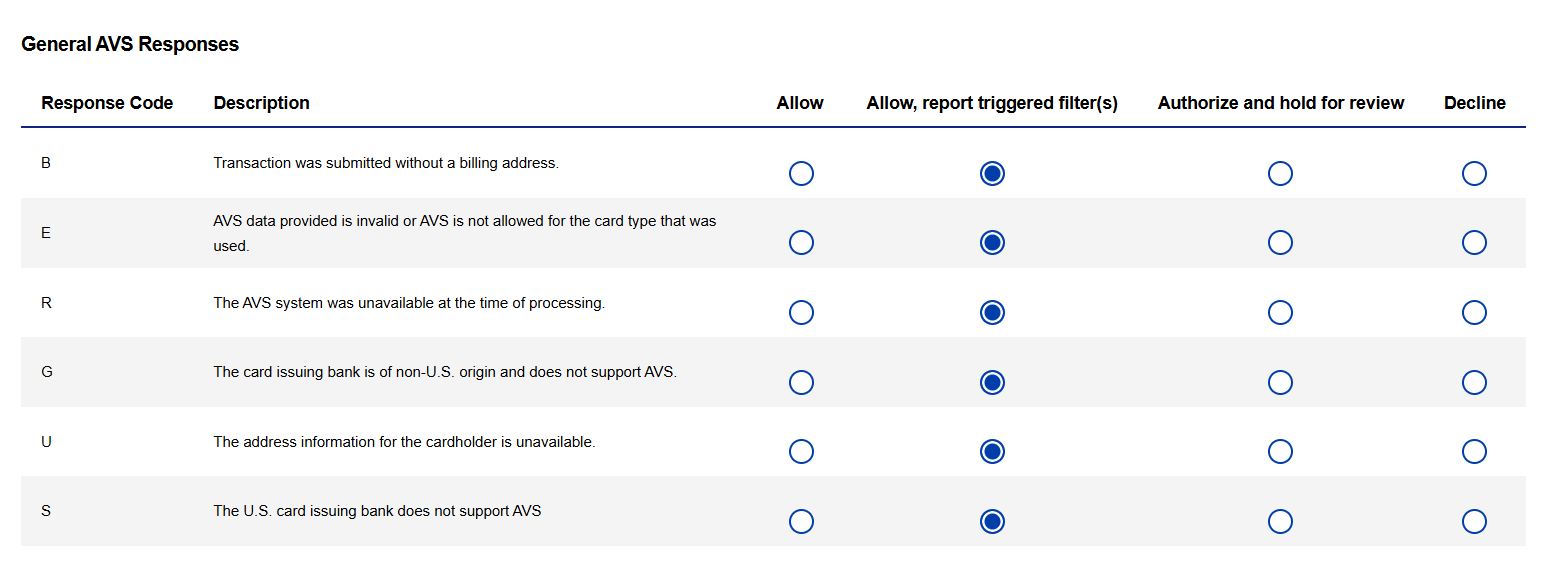
Normally, payment gateways use the Address Verification Service, or AVS, to compare the billing address entered on a donation form with the address on file for the card. If no address is submitted, Authorize.net may decline the transaction unless your AVS settings allow it.
To accept donations without collecting an address, update your General AVS settings in the Advanced Fraud Detection Suite to Allow or Allow and Trigger an Alert when the address is unavailable. At a minimum upate the "B" and "U" settings. This lets the transaction go through even when the donor does not enter an address. Make sure to test your settings once set.
Note: Allowing transactions when an address is not available does not automatically increase fraud risk. It only changes how Authorize.net handles donations when an address is missing.
For steps on where to find this setting, see the guide below.
What is Advanced Fraud Detection Suite (AFDS) and how to enable and use it?
If you have questions or need help updating your settings, please email us at support@4agoodcause.com. We’re happy to help.